
 All posts

How to rearrange products on Shopify is an important skill for store owners who want to improve product visibility and create a better shopping experience. By changing the order of products in your collections, you can highlight bestsellers, promote seasonal items, and help customers find what they need faster.
Shopify provides manual and automatic sorting options to help you organize your catalog. In this guide, you’ll learn how to rearrange products on Shopify in five easy steps, move specific items to the top of a collection, organize homepage products, and troubleshoot common sorting problems.
If you want to explore product ordering in more detail, read our guide on how to change the order of products on Shopify.
Boost Your Conversion Instantly with Nudgify: Turn your website visitors into customers with real-time Social Proof and FOMO Nudges. Get Started Now →
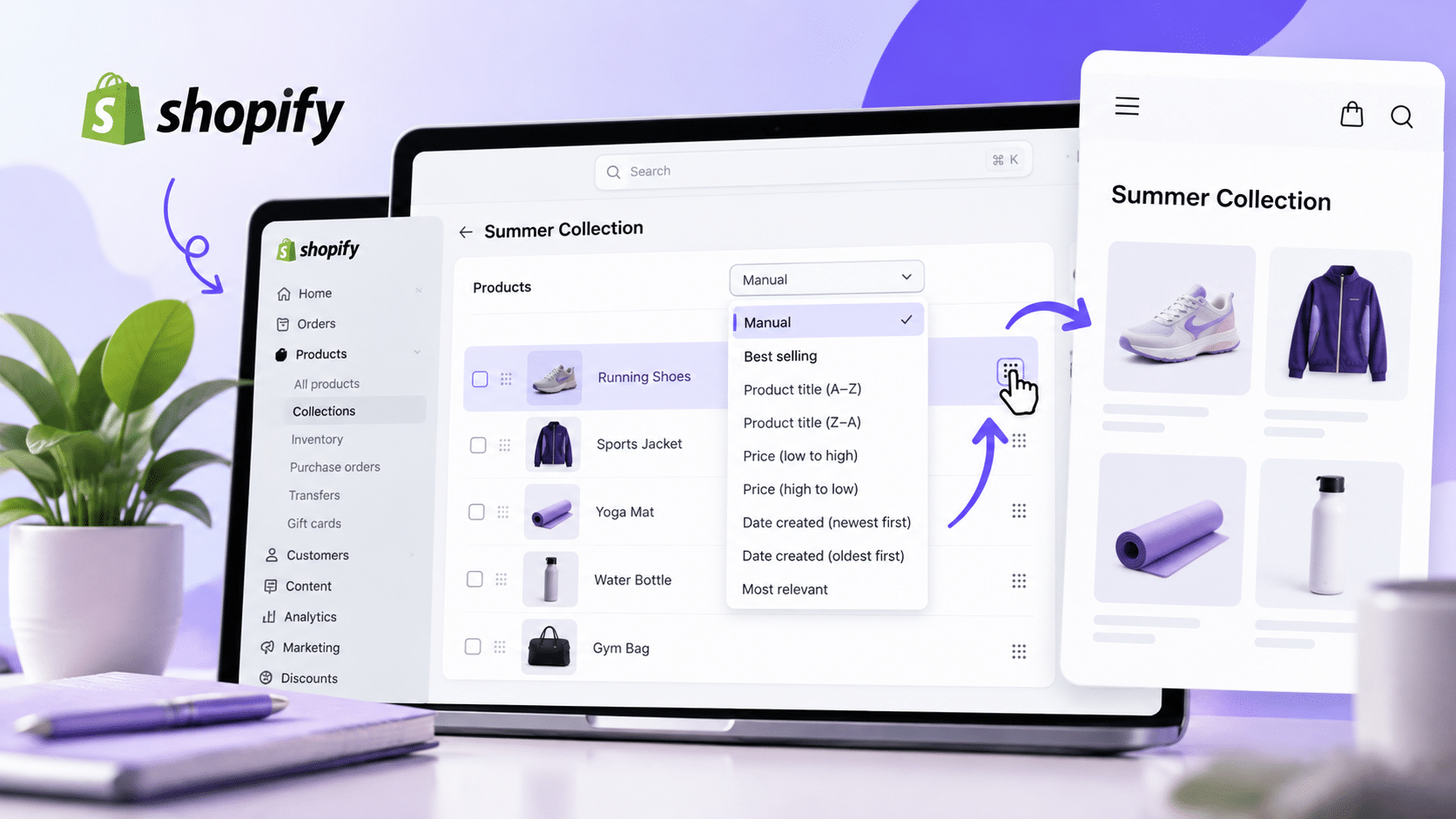
Table of Contents
- How to Rearrange Products on Shopify in 5 Easy Steps
- How to Change Product Sorting Order
- How to Move a Product to the Top
- How to Rearrange Homepage Products
- How to Rearrange Products on Mobile
- Manual vs. Automatic Sorting
- Troubleshooting Product Order Issues
- Best Practices for Organizing Products
- Key Takeaways
- Frequently Asked Questions
How to Rearrange Products on Shopify in 5 Easy Steps
You can rearrange products on Shopify through your collection settings. This lets you control the order in which items appear when customers browse a particular collection in your online store.
If you’re new to Shopify collections, read our guide on how to add collections on Shopify to learn how to group products and make your store easier to navigate.
Step 1: Open Your Shopify Collections
Log in to your Shopify admin dashboard. Navigate to Products > Collections and select the collection containing the products you want to rearrange.
Increase Trust & Sales with Social Proof
Boost trust, engagement, and conversions with Social Proof — tailored for any industry and easy to integrate. Seamlessly manage client access with our team portal.


For example, you might choose a collection called Best Sellers, Summer Collection, New Arrivals, or Women’s Clothing. Make sure you select the correct collection before changing its product order.
Step 2: Find the Product Sorting Options
Open your selected collection and locate the Collection items section. Look for the sorting dropdown, which determines how products are displayed within that collection.
If you want to position products yourself, change the default sorting option to Manual. This gives you more control over the sequence in which products appear.
Step 3: Select Manual Sorting
Choose Manual from the available sorting options. Your collection should now allow you to change product positions instead of automatically arranging items by price, title, or another sorting rule.
Shopify may update its interface or collection controls, so the available options can vary. For the latest instructions, consult Shopify’s official guide to collection layouts.
Step 4: Drag Products Into Your Preferred Order
Once manual sorting is enabled, drag and drop products into the positions you want. You can place important items near the top of the collection so customers are more likely to see them while browsing.
Depending on your Shopify interface, you may also be able to select products and use the move option to place them at the beginning, at the end, or at a specific position.
Step 5: Save Your Changes and Check Your Store
Save your changes if your interface requires it. Then, open the relevant collection on your storefront and check whether the products appear in the intended order.
Review the collection on desktop and mobile devices. This helps you confirm that the product arrangement works well for customers using different screen sizes.
How to Change Product Sorting Order on Shopify
Shopify offers several sorting options to help you organize products according to your store’s needs. The right choice depends on whether you want complete control over product placement or prefer Shopify to arrange items automatically.
To change the sorting order, open Products > Collections, select a collection, and find its default sorting setting. Choose the sorting method that best suits your goals.
| Sorting Option | How It Works | Best Use |
|---|---|---|
| Manual | Lets you control the order of individual products. | Featured products, seasonal promotions, and curated collections. |
| Best selling | Sorts products according to sales performance. | Highlighting popular items. |
| Product title | Arranges products alphabetically or in reverse alphabetical order. | Catalogs with many products or clearly named items. |
| Price | Sorts products from low to high or high to low. | Budget-friendly collections or premium product ranges. |
| Date created | Arranges products from newest to oldest or oldest to newest. | New arrivals or collections organized by product age. |
| Most relevant | Uses Shopify’s relevance-based sorting for the collection. | Collections where relevance-based ordering is appropriate. |
The available sorting options and their behavior may vary depending on your collection setup and Shopify’s current interface. Price sorting may also differ from market-specific or B2B catalog pricing.
How to Move a Product to the Top of a Shopify Collection
If you want to feature a particular product, you can move it to the beginning of a collection. This is useful when promoting new arrivals, popular products, limited-time offers, or items you want customers to notice first.
Move a Product to the Beginning
- Go to Products > Collections in your Shopify admin.
- Open the collection containing the product.
- Set the sorting method to Manual.
- Drag the product to the first position or use the available move option to place it at the beginning.
- Save your changes if needed and check the storefront.
Move a Product to a Specific Position
If you want a product to appear in the middle of a collection rather than at the top, use the manual sorting controls. Depending on your interface, you may be able to select the product and specify its position.
This approach is helpful when creating a deliberate product sequence. For example, you could place a popular item first, complementary products next, and less prominent items further down the collection.
Move Multiple Products
You can also reorganize several products when updating a collection. Select the products you want to move if your interface supports bulk selection, then use the available move controls or drag products into the desired positions.
Review the resulting order carefully to make sure the products appear in the correct sequence. If you’re managing a large collection, consider planning the order before making changes.
If you want to showcase specific items more prominently, see our guide on how to change featured products on Shopify.
How to Rearrange Products on Your Shopify Homepage
Rearranging products within a collection is different from changing the layout of your homepage. Your homepage usually displays products through theme sections, such as featured collections, product grids, and featured product blocks.
To change which products customers see on your homepage, follow these steps:
- Open your Shopify admin and navigate to Online Store > Themes.
- Open the theme editor for your current theme.
- Select the homepage in the theme editor.
- Find the section displaying your products, such as a featured collection or featured product section.
- Choose the collection or product you want to feature and adjust the available section settings.
- Save your changes and preview the homepage.
If your homepage displays a featured collection, the product order may be controlled by that collection’s sorting settings. Check which collection the section uses before changing individual products.
Some themes offer additional controls for product layout and presentation. The available options depend on your theme, so check the settings provided by your theme editor.
How to Rearrange Products on Shopify Mobile
You can manage product sorting through the Shopify mobile app, although the interface may differ slightly from the desktop version. Mobile controls can also change as Shopify updates its app.
To rearrange products using the app:
- Open the Shopify app and navigate to Products > Collections.
- Select the collection you want to edit.
- Open the collection’s product list or collection items view.
- Find the sorting options and select Manual if you want to control the order yourself.
- Drag products or use the available move controls to change their positions.
- Save your changes wherever the app prompts you to do so.
After updating the collection, check your storefront to confirm that the order has changed. If the app doesn’t provide the controls you need, try managing the collection from a desktop browser.
Manual vs. Automatic Product Sorting on Shopify
Choosing between manual and automatic sorting depends on how frequently your products change and how much control you need over their placement.
| Feature | Manual Sorting | Automatic Sorting |
|---|---|---|
| Product order | You choose the order. | Shopify arranges products according to the selected rule. |
| Control | Offers direct control over individual positions. | Offers less control over the exact sequence. |
| Maintenance | May require updates when priorities change. | Can be convenient for collections that benefit from rule-based sorting. |
| Best for | Curated collections and promotional campaigns. | Frequently updated catalogs and straightforward sorting rules. |
Manual sorting is useful when you want to control exactly which products appear first. Automatic sorting is convenient when you want Shopify to organize products using a consistent rule, such as price or sales performance.
Why Are My Shopify Products Showing in the Wrong Order?
If your products don’t appear in the expected order, several settings could be responsible. Check these common issues before making additional changes.
1. The Collection Uses the Wrong Sorting Method
If a collection is sorted by price, title, or another automatic rule, manually moving products may not produce the order you expect. Open the collection settings and select Manual if you want to control product positions directly.
2. You’re Editing the Product List Instead of the Collection
Sorting or filtering the Products list in your Shopify admin doesn’t change the order customers see in your storefront collections. To change storefront product order, edit the sorting settings for the relevant collection.
3. You’re Checking the Wrong Collection
A product can belong to multiple collections, and each collection can have its own sorting settings. If a product appears in different positions across your store, check the settings for each collection separately.
4. Your Homepage Uses a Different Collection
Your homepage may display a featured collection that differs from the collection you’ve edited. Open the theme editor and verify which collection the homepage section uses.
5. You’re Looking at the All Products Catalog
Shopify’s default all-products catalog page may use a different arrangement from your individual collections. If you want to control the order on the catalog page, check Shopify’s documentation about changing your catalog page.
Depending on your setup, you may be able to create a collection with a custom URL handle and use it to control the products displayed on your catalog page. Check your current collection and theme settings before changing the catalog configuration.
6. Your Changes Haven’t Been Saved
Some Shopify interfaces require you to save your changes before they appear on the storefront. Return to the collection settings, confirm the intended order, and save if necessary.
If you’ve checked these settings and the problem continues, review your theme’s documentation or contact Shopify Support for help with your store configuration.
Best Practices for Organizing Shopify Products
A well-organized product collection makes it easier for customers to browse your store. Use these practices to keep your catalog clear and useful.
Feature Important Products First
Consider placing bestsellers, seasonal products, or relevant promotional items near the beginning of important collections. Choose products that match the collection’s purpose and your customers’ needs.
Keep Product Collections Relevant
Organize products into clear, meaningful collections. For example, separate new arrivals, sale items, accessories, and bestsellers so customers can navigate your catalog more easily.
Use Consistent Product Naming
Clear product titles help customers understand what they’re browsing. Consistent naming also makes alphabetical sorting more predictable when you choose to use it.
Review Product Order Regularly
Revisit your collections when launching new products, ending promotions, or changing your merchandising priorities. A quick review can help ensure that the displayed products remain relevant.
Check the Shopping Experience on Mobile
Many customers browse online stores on mobile devices. Preview your collections on smaller screens to make sure product images, titles, and layouts remain easy to use.
Measure Performance Before Making Major Changes
When possible, review sales and conversion data before changing the order of an important collection. This can help you make informed decisions instead of relying only on assumptions about which products customers prefer.
Organizing products is one way to improve the shopping experience. For more ideas, explore our guide on how to increase your Shopify conversion rate.
Key Takeaways
- To rearrange products on Shopify, open the relevant collection and select Manual sorting.
- Drag products into your preferred order or use the available move controls.
- Use automatic sorting when you want Shopify to organize products by a rule such as price, title, or sales performance.
- Manage homepage product sections separately through your theme editor.
- If products appear in the wrong order, check the collection’s sorting method and confirm that you’re editing the correct collection.
- Review your storefront on desktop and mobile after making changes.
Learning how to rearrange products on Shopify gives you more control over how customers discover items in your store. By selecting the right sorting method and reviewing your collections regularly, you can create a more organized and user-friendly shopping experience.
Frequently Asked Questions
How do I rearrange products on Shopify?
Go to Products > Collections, open the collection you want to edit, and select Manual sorting. Then drag products into your preferred order or use the available move controls. Save your changes if required.
Can I manually change the order of products on Shopify?
Yes. You can manually reorder products in a collection by selecting Manual as the sorting method. This allows you to control which products appear first and how the remaining items are arranged.
How do I move a product to the top of a Shopify collection?
Open the collection in your Shopify admin and select Manual sorting. Drag the product to the first position or use the available move option to place it at the beginning.
Why can’t I drag and drop products in Shopify?
Your collection may be using an automatic sorting method instead of Manual. Change the sorting option to Manual and try again. If the controls are different, check the current collection interface or Shopify’s official documentation.
Does changing product order in Shopify admin affect my storefront?
Sorting the general Products list in your admin doesn’t change the order customers see in your collections. To change storefront order, update the sorting settings for the relevant collection.
Can I rearrange products on my Shopify homepage?
Yes. Open your theme editor under Online Store > Themes and select the homepage. You can adjust featured product or featured collection sections. If the homepage uses a collection, its product sorting settings may also affect the displayed order.
Can I rearrange Shopify products using my phone?
Yes. You can manage collections through the Shopify mobile app. Open Products > Collections, select a collection, and use the sorting and move controls available in your version of the app.
Will rearranging products affect my Shopify SEO?
Changing the order of products within a collection does not automatically change the collection’s URL or metadata. However, product placement can affect how customers browse your store and discover products. Keep your collection structure clear and avoid unnecessary URL changes when reorganizing your catalog.

Increase your sales and sign-ups by up
to 15% from $9/mo. only with our Social Proof & FOMO App
Add to Shopify
