


 All posts

How to change order of products on Shopify is a common question for store owners who want more control over which products customers see first. Whether you want to feature best sellers, promote new arrivals, or organize a collection, Shopify lets you control product placement through its collection sorting options.
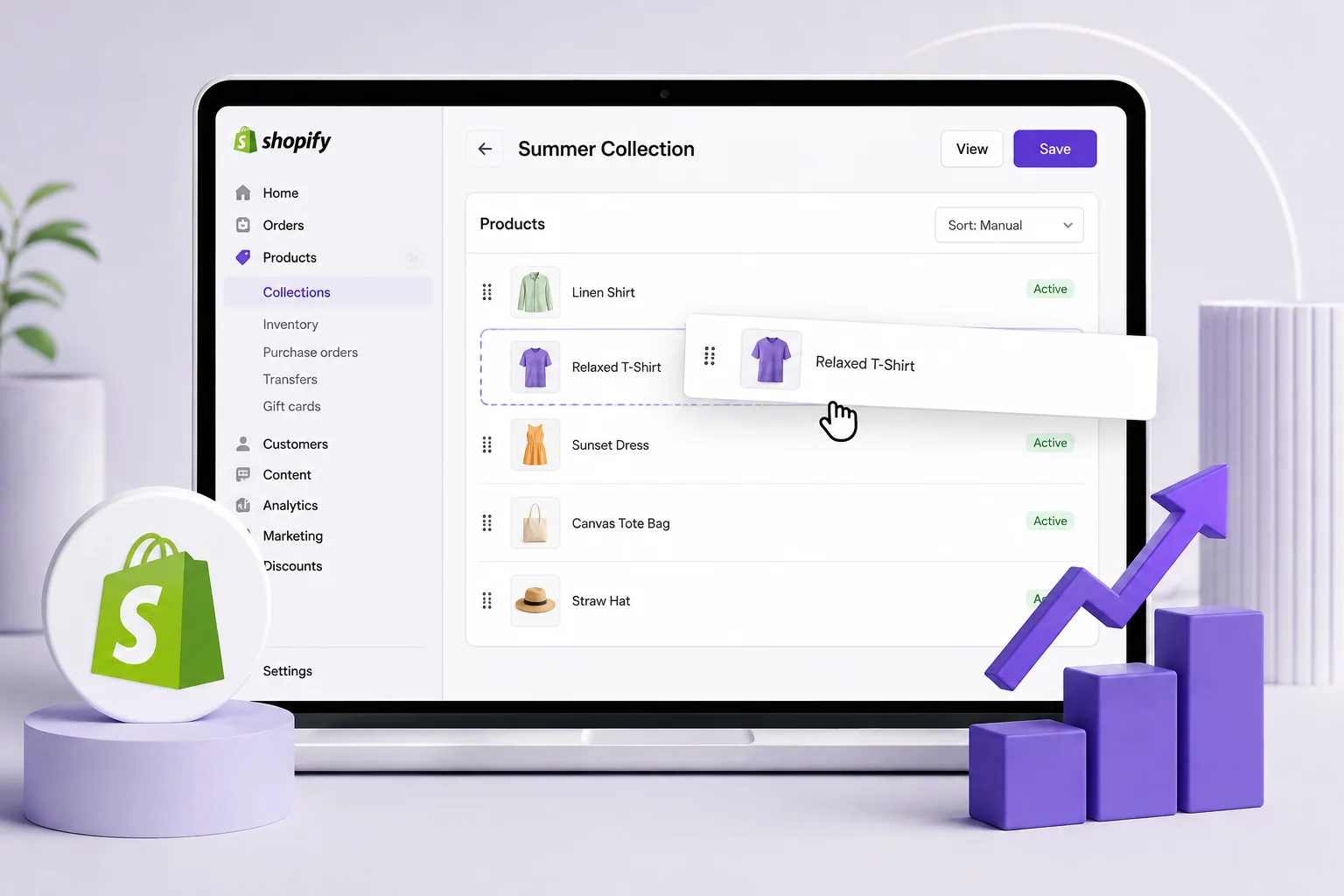
For most Shopify stores, you can change a collection to Manual sorting and then drag products into the order you want. You can also use automatic sorting options when you want products arranged based on factors such as sales, price, title, or when they were added.
In This Guide
Boost Your Conversion Instantly with Nudgify: Turn your website visitors into customers with real-time Social Proof and FOMO Nudges. Get Started Now →
How to Change Order of Products on Shopify
If you want to manually change how products appear in a Shopify collection, follow these steps:
1. Open Shopify Admin
Log in to your Shopify store and open your Shopify Admin.
2. Go to Products and Collections
From the Shopify Admin sidebar, go to Products > Collections.
Find and select the collection where you want to change the product order.
Increase Trust & Sales with Social Proof
Boost trust, engagement, and conversions with Social Proof — tailored for any industry and easy to integrate. Seamlessly manage client access with our team portal.


3. Find the Product Sorting Options
Scroll to the Products section inside the collection. Look for the sorting option that controls how products are displayed.
If the collection is currently sorted by another option, such as Best selling or price, change the sorting method to Manual when you want complete control over the product order.
4. Drag Products Into the Order You Want
Once manual sorting is selected, arrange the products by dragging them into your preferred positions.
For example, you could place a new product first, followed by your best sellers, then seasonal products and other items.
5. Save Your Changes
Save the collection after you finish rearranging the products. Then open the collection on your storefront and check that the products appear in the expected order.
How to Put a Product at the Top of a Shopify Collection
To move a specific product to the top of a collection, open the collection in Shopify Admin and use Manual sorting. Drag the product to the first position in the list and save your changes.
This is useful when you want to give extra visibility to a new arrival, best seller, sale item, or featured product.
Remember that product order is managed within the collection. Moving a product to the top of one collection does not automatically make it the first product in every other collection where it appears.
How to Move a Product to the Bottom of a Shopify Collection
Moving a product to the bottom works in the same way. Set the collection to Manual sorting, then drag the product to the last position.
This can be helpful for products that you still want customers to access but do not want to prioritize, such as older products, discontinued items, or products with limited availability.
How Shopify Product Sorting Works
Shopify collections can use different sorting methods depending on how you want products presented to customers. Manual sorting gives you direct control, while automatic sorting organizes products according to a specific rule.
Manual Sorting
Manual sorting lets you decide exactly where each product appears within the collection. It is the best option when product placement is part of your merchandising strategy.
You can use manual ordering to create a curated sequence instead of relying on sales, price, product title, or date.
Best-Selling Products
Best-selling sorting places products according to their sales performance. This can be useful when you want popular products to receive more visibility without manually rearranging the collection.
Newest Products
A newest-first arrangement is useful for stores that frequently add products and want recent arrivals to appear prominently.
Price Sorting
You can arrange products based on price, such as lowest to highest or highest to lowest. This can be useful for price-focused collections or stores where customers commonly shop within a specific budget.
Alphabetical Sorting
Alphabetical sorting organizes products according to their titles. This can make larger catalogs easier to browse when customers already know what they are looking for.
Most Relevant Sorting
Shopify also introduced a Most Relevant collection sorting option in 2026. This gives merchants another way to present products based on relevance rather than relying solely on manual placement or traditional sorting methods.
Manual vs. Automatic Product Sorting in Shopify
The right sorting method depends on how much control you want over your collection pages.
| Sorting method | Best for |
|---|---|
| Manual | Curated product placement and merchandising |
| Best selling | Showing popular products first |
| Newest | Highlighting recent products and new arrivals |
| Price | Organizing products by price range |
| Alphabetical | Creating predictable product navigation |
| Most relevant | Presenting products based on relevance |
If you want to decide exactly which products customers see first, manual sorting is usually the most flexible option. If your catalog changes frequently, an automatic sorting method can reduce the amount of manual maintenance required.
Can You Change the Order of Products in a Shopify Collection?
Yes. Shopify allows merchants to control the order of products within collections using the collection’s sorting settings.
When a collection uses manual sorting, you can rearrange products into a custom sequence. This gives you more control over which products receive the most prominent positions on the collection page.
Keep in mind that the order applies to the specific collection you are editing. A product can belong to multiple collections, and each collection can have its own product order.
Why Can’t I Change the Order of Products on Shopify?
If you’re wondering how to change order of products on Shopify but your products are not moving as expected, there are several things worth checking.
The Collection Is Using Automatic Sorting
If the collection is sorted by best selling, price, newest, alphabetical order, or another automatic method, Shopify determines the product sequence according to that sorting rule.
Switch to Manual sorting if you want to control the exact order yourself.
You’re Editing the Wrong Collection
Check that you are changing the collection where the product order actually needs to change. A product can appear in several collections, and changing its position in one collection does not necessarily change its position elsewhere.
The Storefront Is Displaying a Different Sort Order
Collection pages can offer sorting and filtering options to customers. If the storefront is displaying a different sort selection, customers may not see the same sequence you configured as the default.
Check the collection directly from your storefront after making changes to confirm how the products are being displayed.
Your Changes Have Not Been Saved
After rearranging products, make sure you save the collection. Then refresh the storefront and check the collection again.
How to Choose the Best Product Order for Your Shopify Store
Knowing how to change order of products on Shopify can also help you manage your product merchandising strategy. Your product sequence can influence which products customers notice first when browsing a collection.
Put Important Products First
Use the first positions for products that deserve the most attention. Depending on your business, these could be best sellers, new releases, promotional products, or seasonal items.
Feature New Products
If you have recently launched a product, placing it near the top of a relevant collection can make it easier for customers to discover.
Prioritize Products With Strong Commercial Value
Merchants may choose to prioritize products based on factors such as margin, inventory availability, promotional campaigns, or strategic importance.
There is no single product order that works for every store. The best sequence depends on your products, customers, and current business goals.
Group Related Products Together
A logical product sequence can make a collection easier to browse. Consider grouping similar styles, complementary products, or related product types together when it helps customers compare options.
Review Your Product Order Regularly
Product priorities change over time. Review your collection order when launching new products, starting promotions, changing seasons, or updating your merchandising strategy.
How to Change Order of Products on Shopify in a Large Catalog
Manually rearranging a small collection is straightforward, but large catalogs require a more structured approach.
For frequently changing collections, consider whether an automatic sorting method can reduce repetitive work. For curated collections, maintain a clear merchandising strategy so that manual product placement remains intentional.
Shopify also provides developer tools for stores and apps that need to reorder products programmatically. This is an advanced option intended for merchants with custom workflows or developers managing product merchandising at scale.
Best Practices for Shopify Product Ordering
- Use manual sorting when you need precise control over product placement.
- Put priority products near the top of important collections.
- Use automatic sorting when your catalog changes frequently and a consistent rule is more practical.
- Review collection order regularly as products, promotions, and inventory change.
- Check the storefront after changing the collection order.
- Keep product names and images clear so customers can quickly understand what they are seeing.
- Use collection-specific merchandising instead of assuming one product order works for every collection.
Key Takeaways
- You can change the order of products on Shopify by managing the sorting order of a collection.
- Choose Manual sorting when you want to control the exact position of products.
- Use drag and drop to move products higher or lower within a manually sorted collection.
- You can put a product at the top or bottom of a collection by changing its position.
- Automatic sorting options can organize products based on factors such as sales, price, title, date, or relevance.
- A product’s position in one collection does not automatically determine its position in other collections.
- Regularly reviewing product placement can help keep your Shopify collections organized and aligned with your merchandising goals.
People Also Ask
How do I change the order of products on Shopify?
Go to Products > Collections, open the collection you want to edit, choose Manual sorting, and drag the products into your preferred order. Save the collection and check the storefront to confirm the new order.
How do I manually reorder products in Shopify?
Open the relevant Shopify collection, change its product sorting method to Manual, and drag products into the positions you want. Manual sorting gives you direct control over the order within that collection.
How do I put a product first in a Shopify collection?
Open the collection in Shopify Admin, select Manual sorting, and move the product to the first position. Save the collection to apply the new order.
Why are my Shopify products not in the order I selected?
The collection may be using an automatic sorting method instead of Manual sorting. Check the collection’s sorting setting and verify the storefront’s active sorting option if customers are seeing a different order.
Can I sort Shopify products by best selling?
Yes. Shopify collections support a Best selling sorting option, which can automatically arrange products based on their sales performance instead of using a manually selected order.
Can I change the order of products in different Shopify collections?
Yes. Product order is managed within each collection, so the same product can have a different position in different collections depending on each collection’s sorting configuration.
Should I use manual or automatic product sorting in Shopify?
Use manual sorting when you want precise control over merchandising and product placement. Use automatic sorting when you prefer Shopify to organize products according to a consistent rule such as sales, price, date, title, or relevance.
Related Articles