
 All posts

Learn how to change shipping address on Shopify if you’ve entered incorrect delivery details, moved to a new location, or forgotten to include your apartment number. Whether you’ve already placed an order or are preparing to check out, knowing how to update your shipping information can help prevent delivery problems.
The process depends on whether you’re a customer trying to correct an order or a store owner managing customer information. It also matters whether the order is still unfulfilled, partially fulfilled, or already with a shipping carrier.
In this guide, you’ll learn how to update a shipping address before and after checkout, how Shopify merchants can correct customer order details, and what to do if a package has already shipped. We’ll also cover common address errors, Shopify editing restrictions, and practical ways to prevent delivery mistakes.
Boost Your Conversion Instantly with Nudgify: Turn your website visitors into customers with real-time Social Proof and FOMO Nudges. Get Started Now →
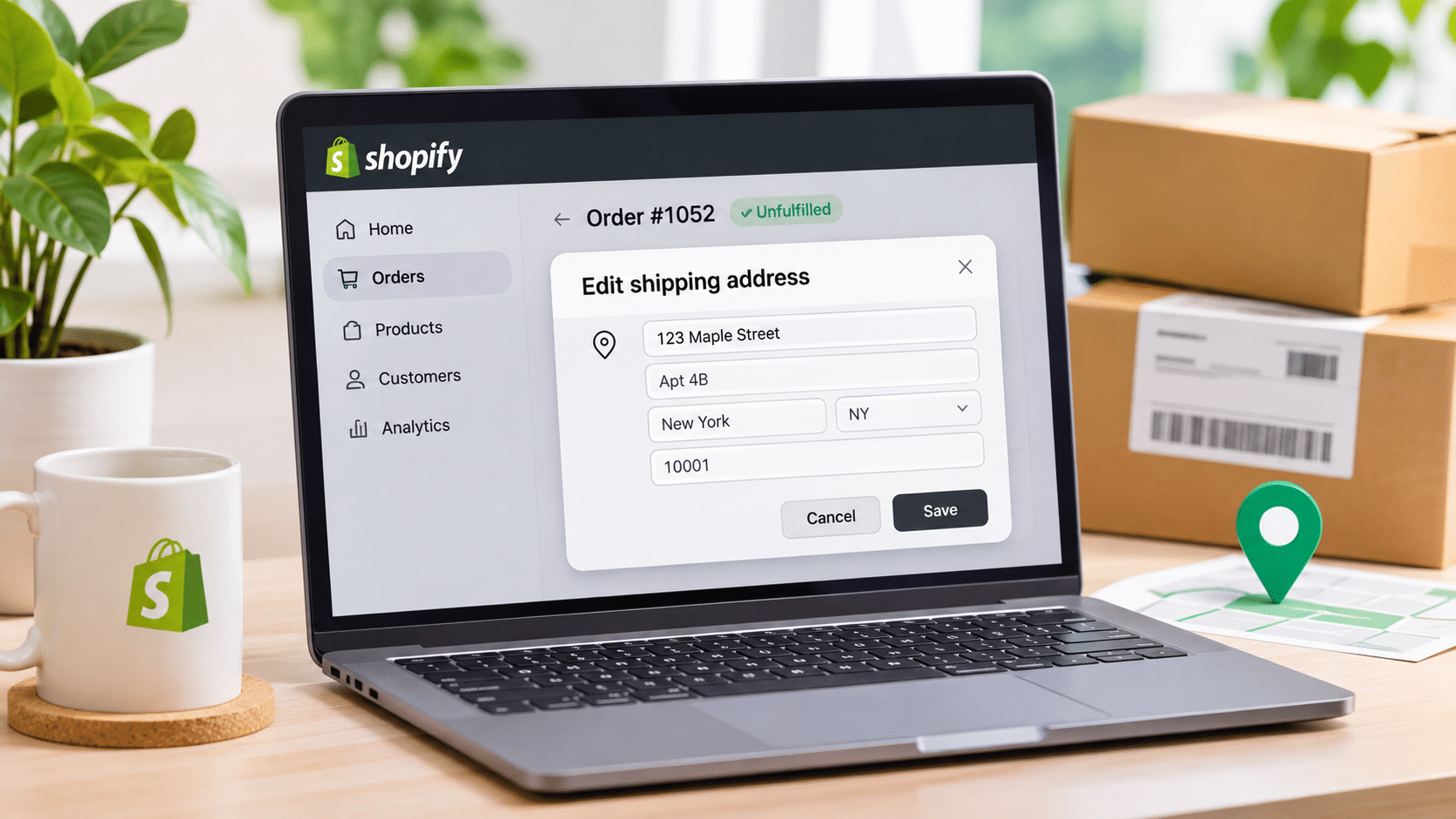
Can You Change a Shipping Address on Shopify?
Yes. Shopify allows merchants to update a customer’s shipping address after an order has been placed, provided the order meets the applicable editing requirements. Customers, however, generally need to contact the store directly to request a change to an existing order.
Authorized store staff can update shipping information through Shopify Admin. The available options depend on the order’s fulfillment status, staff permissions, and other restrictions associated with the order.
Here’s what you can generally do in each situation:
Increase Trust & Sales with Social Proof
Boost trust, engagement, and conversions with Social Proof — tailored for any industry and easy to integrate. Seamlessly manage client access with our team portal.


- Before checkout: Customers can review and correct their shipping information before completing payment.
- After checkout: Customers should contact the store and request an address correction.
- Before fulfillment: Merchants can update the shipping address on eligible orders through Shopify Admin.
- After partial fulfillment: Editing may be restricted if the order contains fulfilled items.
- After shipment: Customers and merchants may need to contact the shipping carrier to explore address correction or redirection options.
The earlier you identify an incorrect address, the easier it is to resolve. Contacting the store before the order is prepared for shipment gives the merchant more time to review the request and prevent the package from being dispatched to the wrong location.
How to change shipping address on Shopify: Step-by-Step Instructions
If you’re purchasing from a Shopify store, the process depends on whether you’ve already completed checkout. Follow the instructions below to correct your delivery information.
1. How to Change Your Shipping Address Before Placing an Order
If you haven’t completed your purchase, you can correct your shipping information directly during checkout.
- Visit the Shopify store where you want to purchase an item.
- Add your selected products to your shopping cart.
- Proceed to the checkout page.
- Enter your contact and shipping information.
- Review your street address, apartment or unit number, city, state or province, and postal code.
- Use the edit option to correct any incorrect information.
- Check that the shipping address is complete before proceeding to payment.
- Complete your purchase once you’ve verified the details.
Tip: Double-check your address even if your browser automatically fills in the information. Autocomplete suggestions can sometimes select an old or incorrect address.
2. How to Change Your Shipping Address After Placing an Order
If you’ve already completed checkout, you might not be able to edit the shipping address directly from your customer account. The best option is to contact the store as soon as possible.
Follow these steps:
- Open the order confirmation email you received after purchasing.
- Find your order number and the store’s contact information.
- Contact the store through its customer support email, contact form, or available live chat.
- Explain that you entered an incorrect shipping address and need to update it.
- Provide your order number and the complete corrected delivery address.
- Ask the store to confirm whether the order is still eligible for an address change.
- Wait for confirmation that the updated information has been saved.
Try to contact the store before the order enters fulfillment. Once the warehouse starts preparing or dispatching your package, changing the delivery details may become more difficult.
3. How to Update a Saved Shipping Address in Your Shopify Customer Account
If you have a Shopify customer account, you can update your saved address information for future purchases. This is useful if you’ve moved or regularly receive deliveries at a different location.
To update your saved address:
- Visit the Shopify store and sign in to your customer account.
- Open your account profile.
- Navigate to the Addresses section.
- Find your default shipping address.
- Select the edit option next to the address.
- Enter your updated delivery information.
- Review the details and save your changes.
With Shopify’s customer account experience, customers can manage saved shipping addresses from their account profile. The exact appearance may vary depending on the store’s account setup.
Important: Updating your saved customer address does not automatically change the shipping address on an order you’ve already placed. You must contact the store separately if you need to correct an existing purchase.
How Shopify Store Owners Can Change a Customer’s Shipping Address
If you’re a Shopify merchant, you can update a customer’s shipping address directly from the order details in Shopify Admin. This is particularly useful when customers contact your support team about incorrect delivery information before fulfillment.
Step 1: Open Your Shopify Admin
Log in to your Shopify account and navigate to the Orders section from your admin dashboard.
Step 2: Find the Customer’s Order
Locate the order that requires an address correction. You can search using the order number or relevant customer information.
Click the order to open its details and review its current fulfillment status.
Step 3: Locate the Customer Information
Find the Customer section within the order details. Open the additional actions menu beside the customer information.
Step 4: Select Edit Shipping Address
Choose Edit shipping address from the available options.
If the option isn’t available, check whether the order contains fulfilled items or whether another order editing restriction applies.
Step 5: Enter the Correct Shipping Information
Update the customer’s shipping information, including any incorrect details.
Check the following fields carefully:
- First and last name
- Company name, if applicable
- Street address
- Apartment, suite, or unit number
- City or municipality
- State, province, or region
- ZIP or postal code
- Country or region
- Phone number, if required for delivery
Make sure the new address is complete and follows the delivery requirements of the destination country.
Step 6: Review Address Validation and Tax Adjustments
Shopify may display an address validation warning if the updated address appears incomplete or cannot be verified.
It may also recalculate applicable taxes based on the new shipping destination. Review any tax differences before saving. Depending on the result, you may need to collect an additional amount or issue a refund.
Tax recalculations for shipping address changes apply to eligible unfulfilled orders. Review the updated order summary before completing the change.
Step 7: Save and Verify the Updated Address
Once you’ve reviewed the new information, click Save.
Return to the order details and verify that the corrected shipping address appears correctly. If fulfillment hasn’t started, make sure your fulfillment team or warehouse receives the updated information before packing the order.
Can You Change a Shipping Address Using the Shopify Mobile App?
Yes. Authorized Shopify merchants can also update customer shipping addresses using the Shopify mobile app.
To make the change:
- Open the Shopify app and sign in to your store.
- Navigate to Orders.
- Select the order that needs an address correction.
- Find the Customer section.
- Open the additional actions menu.
- Select Edit shipping address.
- Update the required address fields.
- Review any validation warnings or tax adjustments.
- Tap Save or the checkmark to confirm.
The exact menu appearance may vary depending on your app version and device.
What Happens If Your Shopify Order Has Already Shipped?
If your order has already been fulfilled or handed over to a shipping carrier, changing the address through Shopify may no longer be possible using the standard order editing process.
However, you may still have a few options depending on the shipping provider, destination, and current shipment status.
1. Contact the Shopify Store Immediately
Notify the store that your package has an incorrect delivery address. Provide your order number and the correct address so the support team can check whether the shipment can still be intercepted or updated.
2. Contact the Shipping Carrier
If the package is already with the courier, contact the shipping carrier directly. Ask whether they offer an address correction, delivery interception, or package redirection service.
Keep your tracking number available when contacting the carrier.
3. Check Whether the Package Can Be Redirected
Some shipping carriers offer delivery management services that allow eligible recipients to request changes to a delivery location or schedule.
However, these services are not available for every shipment. Restrictions may depend on the carrier, shipping service, destination, sender instructions, and delivery stage.
4. Contact the Store If the Package Cannot Be Redirected
If the carrier cannot change the delivery details, ask the store about its available options. Depending on the circumstances and store policies, these may include waiting for the package to be returned, arranging another shipment, or discussing an alternative resolution.
Don’t assume that a new delivery address can be applied automatically. Always wait for confirmation from the store or carrier.
Why Can’t I Change My Shipping Address on Shopify?
Sometimes, the option to edit a shipping address may not appear in Shopify Admin. This doesn’t necessarily mean there’s a technical problem. Certain order conditions and account permissions can prevent merchants from making changes.
1. The Order Contains Fulfilled Items
Shopify restricts editing an order if it contains fulfilled line items. This means that even if some products in an order have not yet shipped, the presence of fulfilled items can prevent further order editing.
If the order has already entered the fulfillment process, contact the relevant fulfillment provider or shipping carrier to check what changes are still possible.
2. You Don’t Have the Required Staff Permissions
Shopify requires appropriate staff permissions to edit customer details on an order.
Staff need at least one of the following permissions:
- Manage order information
- Edit orders
- Fulfill and ship orders
If you cannot access the editing option, ask your store administrator to review your account permissions.
3. The Order Was Imported From Another Platform
Some imported orders have editing restrictions. If an order originated from an external sales channel or another system, certain changes may not be available through Shopify Admin.
Check the original sales platform or integration to determine whether the address needs to be corrected there.
4. The Order Uses Shop Pay Installments
Orders using Shop Pay Installments can have specific editing restrictions. If the address editing option isn’t available, review the order’s payment method and Shopify’s order editing requirements before attempting another change.
5. The Order Uses Local Delivery
Orders that use Shopify’s local delivery method cannot be edited through the standard order editing workflow.
If a customer needs to change their delivery location, contact them directly and review the available options before arranging delivery.
6. The Address Contains Invalid or Incomplete Information
Shopify may display an address validation warning if the new information doesn’t match the expected address format or cannot be verified.
Review the street name, building number, postal code, city, and country. Correct any missing information and check whether Shopify provides a suggested address.
Shipping Address vs. Billing Address: What’s the Difference?
Shipping and billing addresses serve different purposes during an online purchase. Understanding the difference can help customers avoid changing the wrong information.
What Is a Shipping Address?
A shipping address is the location where a purchased product should be delivered. It tells the store and shipping carrier where to send the package.
For example, you might use your home address as your shipping address when purchasing clothes, electronics, or other physical products online.
What Is a Billing Address?
A billing address is the address associated with a customer’s payment information. It may be used for payment verification, billing records, and other financial purposes.
For example, if you use a credit card to purchase an item, your billing address may be the address registered with your card issuer.
Can You Change Your Shipping Address Without Changing Your Billing Address?
Yes. Shipping and billing addresses are separate pieces of information in Shopify checkout.
Customers can generally use different addresses for delivery and billing, depending on the store’s checkout settings. Shopify merchants can also update an eligible order’s shipping address without changing its billing address.
Keep in mind that Shopify’s order editing functionality does not provide the same option for editing an existing order’s billing address.
Common Shopify Shipping Address Problems and How to Fix Them
Address mistakes can happen for several reasons, from typing errors to incomplete delivery information. Here are some of the most common problems and how to resolve them.
1. Incorrect Postal Code
Possible cause: Typing error or outdated information.
Recommended solution: Verify the correct postal code and request an update before fulfillment.
2. Missing Apartment or Unit Number
Possible cause: Incomplete checkout information.
Recommended solution: Contact the store and provide the complete delivery address, including the apartment, suite, or unit number.
3. Wrong City or Province
Possible cause: Incorrect address selection or an autocomplete mistake.
Recommended solution: Provide the corrected city, province, and postal code to the store.
4. Shipping Address Won’t Save
Possible cause: Order restrictions or insufficient staff permissions.
Recommended solution: Check the order status and review staff editing permissions.
5. Order Already Shipped
Possible cause: The package has entered the shipping carrier’s delivery network.
Recommended solution: Contact the shipping carrier and ask about available address correction or redirection options.
6. Address Validation Error
Possible cause: Missing or incorrectly formatted address information.
Recommended solution: Review the address fields and correct any validation warnings. Confirm the details with the customer if necessary.
7. Saved Address Didn’t Update an Existing Order
Possible cause: Customer profile information and existing order details are managed separately.
Recommended solution: Contact the merchant and request an update to the specific order.
How to Prevent Shipping Address Mistakes on Shopify
For Shopify merchants, preventing incorrect shipping information is often easier than resolving delivery issues after checkout. A few improvements to the checkout and order management process can help reduce avoidable mistakes.
1. Double-Check Shipping Information Before Fulfillment
Review customer shipping details before preparing orders for dispatch. Pay particular attention to incomplete addresses, missing apartment numbers, and incorrect postal codes.
For stores that process many orders daily, establishing a simple address verification procedure can help staff catch mistakes earlier.
2. Enable Address Autocompletion
Shopify provides an address autocompletion feature that can suggest addresses as customers enter their delivery information. These suggestions help customers enter address details more quickly and accurately.
To review the setting:
- Open Shopify Admin.
- Navigate to Settings > Checkout.
- Find the relevant checkout configuration and select Edit.
- Open the settings sidebar in the checkout and accounts editor.
- Locate the Address autocompletion section.
- Make sure Use address autocompletion is enabled.
- Save your changes.
Address suggestions are available only in supported countries and regions. Customers in unsupported locations can still enter their delivery details manually.
3. Enable Shipping Address Validation
Shopify also provides shipping address validation features that can identify certain address problems and suggest corrections before customers complete their purchases.
To review your address collection preferences:
- Open Shopify Admin.
- Go to Settings > Checkout.
- Find Address collection under the advanced preferences.
- Enable Validate shipping address, if available for your store.
- Save your settings.
Address validation availability varies by country and region. Shopify also validates addresses in supported order workflows, helping merchants identify potential delivery problems before fulfillment.
4. Send Clear Order Confirmation Notifications
Order confirmation emails give customers an opportunity to review their purchase details after checkout.
Make sure your confirmation notifications clearly display the shipping address. This makes it easier for customers to notice mistakes and contact your support team before fulfillment.
You can also review your store’s Shopify checkout and notification settings to understand the available configuration options.
5. Establish a Clear Shipping Address Change Policy
Create a straightforward policy explaining how customers can request address changes and when those requests can be accepted.
For example, explain that customers should contact support immediately after checkout and that changes cannot be guaranteed once an order has entered fulfillment.
Make this policy easy to find on your website, particularly on your shipping information, FAQ, and customer support pages.
6. Respond Quickly to Customer Address Change Requests
When customers report an incorrect delivery address, time matters. A delayed response could mean the order moves from processing to fulfillment before anyone can correct the information.
Make sure your customer support team has a clear process for identifying urgent address change requests and forwarding them to the appropriate fulfillment staff.
Clear communication also helps customers understand whether their request has been accepted, whether the package is already on its way, and what options are available.
Key Takeaways
- You can change a Shopify shipping address after checkout: Eligible orders can be updated by authorized store staff through Shopify Admin.
- Customers should contact the store directly: Updating a saved account address does not automatically change an existing order.
- Order fulfillment status matters: Address changes are easier to handle before fulfillment. Orders containing fulfilled items have editing restrictions.
- Shipped orders require a different approach: Contact the store and shipping carrier to explore possible redirection options.
- Shipping and billing addresses are different: Correcting a delivery address does not automatically change billing information.
- Prevention reduces delivery problems: Address validation, autocomplete, order notifications, and clear support procedures can help minimize mistakes.
Frequently Asked Questions About Shopify Shipping Addresses
Can I change my shipping address after placing an order on Shopify?
Yes. An eligible order’s shipping address can be changed after checkout. However, customers generally need to contact the store directly. Authorized merchants can update the address through Shopify Admin if the order meets the editing requirements.
Can I change my Shopify shipping address after it has shipped?
Once an order has shipped, you may not be able to change its address through Shopify Admin. Contact the store and shipping carrier as soon as possible to ask whether an address correction or delivery redirection is available.
Can a Shopify seller change a customer’s shipping address?
Yes. Authorized Shopify staff can open an eligible order, select Edit shipping address in the Customer section, enter the corrected details, and save the changes. Appropriate staff permissions are required.
Does changing my Shopify shipping address affect my billing address?
No. Shipping and billing addresses are separate. Updating the shipping address on an eligible Shopify order does not automatically change its billing address.
Why can’t I edit my shipping address on Shopify?
Common reasons include an order containing fulfilled items, insufficient staff permissions, an imported order, Shop Pay Installments restrictions, or local delivery restrictions. Check the order details and editing permissions to identify the issue.
Can I change my shipping address without canceling my Shopify order?
Yes. Merchants can update the shipping address on eligible orders without canceling and recreating them. Customers should contact the store and request the correction before fulfillment whenever possible.
Does updating my Shopify account address change an existing order?
No. Updating your saved customer address generally affects your account information and future purchases. It does not automatically update the delivery details of an order you’ve already placed.
How do I contact a Shopify store about an incorrect shipping address?
Check your order confirmation email or the store’s website for its customer support contact details. Provide your order number, explain the address mistake, and include the complete corrected delivery address.
Can I change my shipping address using the Shopify mobile app?
Yes. Authorized merchants can open an eligible order in the Shopify mobile app, locate the Customer section, select Edit shipping address, update the details, and save the changes.
How can Shopify merchants prevent incorrect shipping addresses?
Merchants can reduce address errors by enabling available address autocomplete and validation features, reviewing order information before fulfillment, displaying clear confirmation emails, and responding quickly to customer correction requests.
Getting a shipping address right is an important part of providing a smooth online shopping experience. Whether you’re a customer correcting an order or a merchant managing deliveries, acting quickly and keeping communication clear can help prevent unnecessary shipping problems.
For store owners, making address corrections easy to request and resolve can also improve customer confidence and create a better post-purchase experience. Keeping customers informed through clear order notifications and helpful support can make the entire shopping journey easier.
For more Shopify tips and customer experience insights, explore the Nudgify blog and discover practical ways to improve your online store.

Increase your sales and sign-ups by up
to 15% from $9/mo. only with our Social Proof & FOMO App
Add to Shopify
