All posts

How to change theme in Shopify is a common question among store owners who want to refresh their website design, improve the shopping experience, or give their online store a more professional appearance. Fortunately, Shopify makes it easy to add, customize, preview, and publish a new theme without rebuilding your entire store.
If you’re wondering how to change theme in Shopify without disrupting your online store, the process starts with adding a new theme to your library. You can customize your Shopify theme, preview the changes, and publish the new design when everything is ready.
Whether you’re switching to a completely different design or updating your existing storefront, understanding how to change theme in Shopify can help you avoid unnecessary mistakes. This guide explains the entire process, including customization, publishing, and protecting your existing store content.
Boost Your Conversion Instantly with Nudgify: Turn your website visitors into customers with real-time Social Proof and FOMO Nudges. Get Started Now →

Table of Contents
- Can You Change Your Shopify Theme Without Losing Store Content?
- How to Change Theme in Shopify: Step-by-Step Guide
- How to Customize Your Shopify Theme Without Changing It
- What Happens to Your Shopify Store After Changing Themes?
- Things to Do Before Changing Your Shopify Theme
- Common Shopify Theme Problems and How to Fix Them
- How to Improve Your Shopify Store After Changing Themes
- Frequently Asked Questions
Can You Change Your Shopify Theme Without Losing Store Content?
Yes. You can change your Shopify theme without automatically deleting your products, collections, navigation menus, pages, or blog posts. These resources are managed separately from your theme in Shopify.
However, your new theme may display existing content differently. Some design settings, homepage sections, custom code, and theme-specific app integrations may need to be configured again.
For example, your existing homepage might have a promotional banner, featured product section, and customer review widget. After switching themes, you may need to recreate or reposition these elements using the new theme editor.
If you’re researching how to change theme in Shopify, remember that changing the storefront design is different from changing your store’s underlying products and business information.
Increase Trust & Sales with Social Proof
Boost trust, engagement, and conversions with Social Proof — tailored for any industry and easy to integrate. Seamlessly manage client access with our team portal.


This is why it’s important to preview and test your new theme before publishing it.
How to Change Theme in Shopify: Step-by-Step Guide
Learning how to change theme in Shopify is straightforward when you follow the correct steps. You can add a new theme, customize its appearance, preview the storefront, and publish it when you’re satisfied with the result.
Step 1: Log In to Your Shopify Admin
Start by logging in to your Shopify account. Open your Shopify admin dashboard, where you can manage products, orders, customers, and your online store.
From the left-hand navigation menu:
- Click Online Store.
- Select Themes.
- Review the theme currently published on your store.
Your published theme is the design customers currently see when visiting your online store. You’ll also find your available draft themes on this page.
Step 2: Choose a New Shopify Theme
Before replacing your current design, decide which theme best suits your products, brand identity, and customers.
Shopify provides several ways to add a new theme:
- Free themes: Choose from Shopify’s available free themes and add one to your store.
- Paid themes: Explore premium designs in the Shopify Theme Store. You can try a paid theme before purchasing it, but you’ll need to buy it before publishing.
- AI-generated themes: Eligible merchants can explore Shopify’s AI-powered theme creation features.
- Uploaded themes: Upload a compatible theme ZIP file if you already have a theme downloaded.
You can explore available designs through the official Shopify Theme Store.
When choosing a theme, consider its mobile layout, navigation, product display, customization options, loading performance, and compatibility with the apps you use.
Step 3: Add the New Theme to Your Shopify Store
Once you’ve selected a theme, add it to your Shopify admin. This allows you to prepare the new design without immediately replacing your existing storefront.
For a free theme:
- Open Online Store > Themes.
- Browse the available free themes or visit the Shopify Theme Store.
- Select the theme you want to use.
- Choose the option to add it to your theme library.
For a paid theme:
- Visit the Shopify Theme Store.
- Choose a theme that fits your store.
- Click Try theme to add a preview version to your store.
- Review and customize it before purchasing.
Your newly added theme will appear under the Draft themes section of your Shopify admin.
This draft feature is especially useful when learning how to change theme in Shopify because you can prepare your new storefront without immediately affecting the live shopping experience.
Step 4: Customize Your New Shopify Theme
Before publishing, customize your new theme to match your brand and business requirements.
- Go to Online Store > Themes.
- Find your newly added draft theme.
- Click Edit theme.
- Use the theme editor to adjust your store’s design and layout.
Depending on the theme, you can customize elements such as:
- Colors: Adjust backgrounds, buttons, text, and other visual elements.
- Typography: Choose fonts and text sizes that match your brand.
- Logo: Add your business logo to the header.
- Homepage sections: Arrange banners, featured collections, product sections, and promotional content.
- Navigation: Review your header, menus, and footer layout.
- Product pages: Adjust how product images, descriptions, pricing, and purchase options appear.
Understanding how to change theme in Shopify also means knowing how to make your new design consistent with your brand. Use your existing brand colors, typography, and product photography to create a recognizable storefront.
Remember to save your changes as you work. Available customization options vary depending on the theme.
Step 5: Preview Your New Shopify Theme
Never publish a new theme without checking how it looks and functions first.
Use Shopify’s theme preview to review your storefront before making the design live.
Check the following areas:
- Homepage appearance and layout.
- Product pages and product images.
- Collection pages and product grids.
- Navigation menus and footer links.
- Shopping cart and purchasing journey.
- Mobile and desktop display.
- Promotional banners and announcement bars.
Pay particular attention to mobile users. A design that looks attractive on a desktop computer may not provide the same experience on a smaller screen.
Step 6: Publish Your New Shopify Theme
Once you’re satisfied with the design and have checked the important store functions, you can publish your new theme.
To publish from your Shopify admin:
- Go to Online Store > Themes.
- Find your new theme under Draft themes.
- Click Publish.
- Review the confirmation window.
- Click Publish again to confirm.
Your new theme will become the published theme that customers see when they visit your online store.
Your previous published theme will move into the Draft themes section. You can keep it available in your admin and publish it again if you decide to restore the previous design.
That’s how to change theme in Shopify while keeping your previous design available as a backup.
How to Customize Your Shopify Theme Without Changing It
If you only want to update your store’s appearance, you may not need to switch themes at all.
Shopify’s built-in theme editor lets you modify the design of your existing theme without replacing it.
To customize your current theme:
- Open your Shopify admin.
- Go to Online Store > Themes.
- Find your published theme.
- Click Edit theme.
- Make the changes you want using the theme editor.
- Click Save.
You can use this option to update your colors, fonts, homepage sections, product layouts, and other available design settings.
If you’re happy with your current theme’s structure but want a fresh appearance, customizing the existing design may be more practical than switching to a completely new theme.
Understanding the difference between changing and customizing a theme can help you choose the right approach for your business.
What Happens to Your Shopify Store After Changing Themes?
Changing your Shopify theme doesn’t mean starting your store from scratch. However, it’s important to understand which parts of your store remain separate from the theme and which may require additional work.
Usually retained
- Products
- Collections
- Navigation menus
- Pages
- Blog posts
- Orders and customer records
May need reconfiguration
- Homepage layout
- Theme settings
- Custom code
- Theme-specific app blocks
- Product page layouts
- Promotional sections
The exact changes depend on your previous theme, your new theme, and any customizations you’ve made.
Before completing the process, review your important pages and make sure your new theme displays the information customers need.
Things to Do Before Changing Your Shopify Theme
A little preparation can help you avoid unnecessary problems when switching to a new theme. These precautions are important whether you’re updating an existing design or learning how to change theme in Shopify for the first time.
1. Duplicate Your Existing Theme
Create a backup copy of your current theme before making significant changes. This gives you another version to refer to if something goes wrong.
2. Check Your Apps and Integrations
Some Shopify apps rely on theme-specific app blocks, app embeds, or code integrations. Check whether your important apps work correctly with your new theme.
Pay attention to review widgets, product recommendations, popups, email signup forms, and other conversion tools.
3. Review Your Custom Code
If you’ve previously added custom Liquid, CSS, or JavaScript to your theme, don’t assume those changes will automatically transfer to a different theme.
Keep a copy of important customizations and ask a developer for help if you’re unsure how to recreate them.
4. Test Your Store’s Shopping Experience
Make sure customers can still browse products, add items to their cart, and complete the normal purchasing process.
Check important pages and interactions before announcing your new store design.
5. Choose a Suitable Time to Publish
If your store receives regular orders, consider publishing the new theme during a quieter period. This gives you time to review the live storefront and address unexpected design or functionality issues.
Common Shopify Theme Problems and How to Fix Them
My New Theme Is Not Showing on My Store
Check whether you’ve published the new theme. Adding a theme to your library does not automatically make it live.
Go to Online Store > Themes and confirm which theme has the Published or Live status.
My Homepage Looks Different After Changing Themes
This is normal because each Shopify theme can have its own sections, templates, and layout settings.
Open the theme editor and arrange the homepage sections to match your preferred design.
My Shopify Apps Are Not Working Properly
Check whether the apps are compatible with your new theme and whether their app embeds or blocks are enabled.
Some integrations may require additional setup or help from the app developer.
My Custom Design Disappeared
Theme-specific customizations do not necessarily transfer when you switch themes.
Review your backup and saved code, then recreate the changes in the new theme. For complicated customizations, consider working with a Shopify developer.
How to Improve Your Shopify Store After Changing Themes
Switching to a new theme is also an opportunity to improve the overall shopping experience.
Instead of focusing only on how your store looks, consider how visitors interact with it and what might encourage them to explore your products.
Make Your Store Easy to Navigate
Organize your menus, collections, and product categories so visitors can find what they need without unnecessary steps.
Improve Your Product Pages
Use clear product images, helpful descriptions, visible pricing, and easy-to-find purchase buttons. Make sure important information is accessible on mobile devices.
Build Customer Confidence With Social Proof
Display useful customer reviews, clear shipping information, return policies, and other trust signals where they help shoppers make informed decisions.
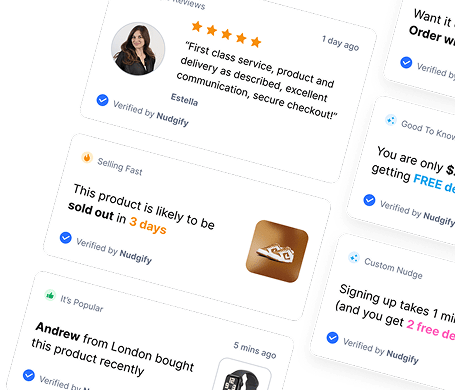
You can also explore Nudgify’s social proof notifications to highlight genuine customer activity and build confidence among website visitors.
For example, relevant notifications can highlight recent purchases, customer reviews, and other genuine activity on your store. These notifications can help shoppers feel more confident when considering a purchase.
Explore more practical eCommerce marketing and conversion optimization tips on the Nudgify blog.
Monitor Your Store Performance
After publishing your new theme, monitor how customers interact with your store.
Pay attention to page speed, mobile usability, product engagement, add-to-cart activity, and conversion rates. This will help you identify whether the new design is improving the customer experience or creating new obstacles.
Frequently Asked Questions About Changing Shopify Themes
How do I change my Shopify theme?
To learn how to change theme in Shopify, log in to your Shopify admin and go to Online Store > Themes. Add a new theme, customize and preview it, then click Publish when you’re ready to replace your current design.
Will I lose my products if I change my Shopify theme?
No. Your products, collections, pages, menus, and blog posts are managed separately from your theme, so changing themes does not automatically delete them. However, some design settings and theme-specific customizations may need to be configured again.
Can I change my Shopify theme without affecting my live store?
Yes. You can add a new theme as a draft and customize it without replacing your published theme. Your customers will continue seeing the existing live theme until you publish the new one.
Can I switch back to my old Shopify theme?
Yes. After publishing a new theme, your previous theme moves to the Draft themes section. You can publish it again if you want to restore the previous design.
Can I customize my Shopify theme without changing it?
Yes. Go to Online Store > Themes and click Edit theme next to your published theme. You can modify available colors, fonts, sections, layouts, and other design settings without switching to a different theme.
Do I need to buy a new Shopify theme?
No. Shopify offers free themes that you can use for your store. Paid themes are optional and may provide additional design options or features depending on the theme.
Will changing my Shopify theme affect my SEO?
It can affect your SEO indirectly if the new design changes your page content, headings, navigation, internal links, structured data, or page performance. Your existing products and pages are not automatically deleted, but you should review important URLs, metadata, mobile usability, and indexing after switching.
Can I change my Shopify theme from my phone?
You can manage themes and publish a draft theme through the Shopify mobile app. However, for more detailed customization and quality checks, using a desktop browser is generally more convenient.
Key Takeaways
- You can change your Shopify theme without automatically losing your products, collections, pages, or blog posts.
- Add your new theme as a draft before replacing your existing design.
- Customize and preview the new theme before publishing it.
- Back up your existing theme and review custom code and app integrations.
- Your previous published theme remains available in Draft themes after switching.
- Test your new storefront on desktop and mobile before announcing the design change.
- Monitor your store’s performance and customer experience after publishing.
Final Thoughts
Learning how to change theme in Shopify doesn’t have to be complicated. With the built-in theme editor, you can explore new designs, customize your storefront, and preview your changes before making them live.
The most important thing is to prepare your new theme properly. Back up your existing design, review your apps and customizations, and test the shopping experience before publishing.
Now that you know how to change theme in Shopify, you can confidently update your storefront, explore new designs, and create a better shopping experience for your customers.
A well-designed storefront should not only look professional but also make it easier for customers to find and buy what they need.

Increase your sales and sign-ups by up
to 15% from $9/mo. only with our Social Proof & FOMO App
Add to Shopify