
 All posts

If you’re wondering, where is my Shopify URL, you can find it directly in your Shopify admin dashboard. Your Shopify URL is the web address people use to access your online store, and it’s also important when connecting domains, sharing products, or managing your website.
Whether you’re using Shopify’s default domain or a custom website address, finding your store URL only takes a few steps. In this guide, you’ll learn how to locate your Shopify URL on desktop and mobile, understand the different types of Shopify URLs, and share the correct link with customers.
Where Is My Shopify URL? Find It in Your Shopify Admin
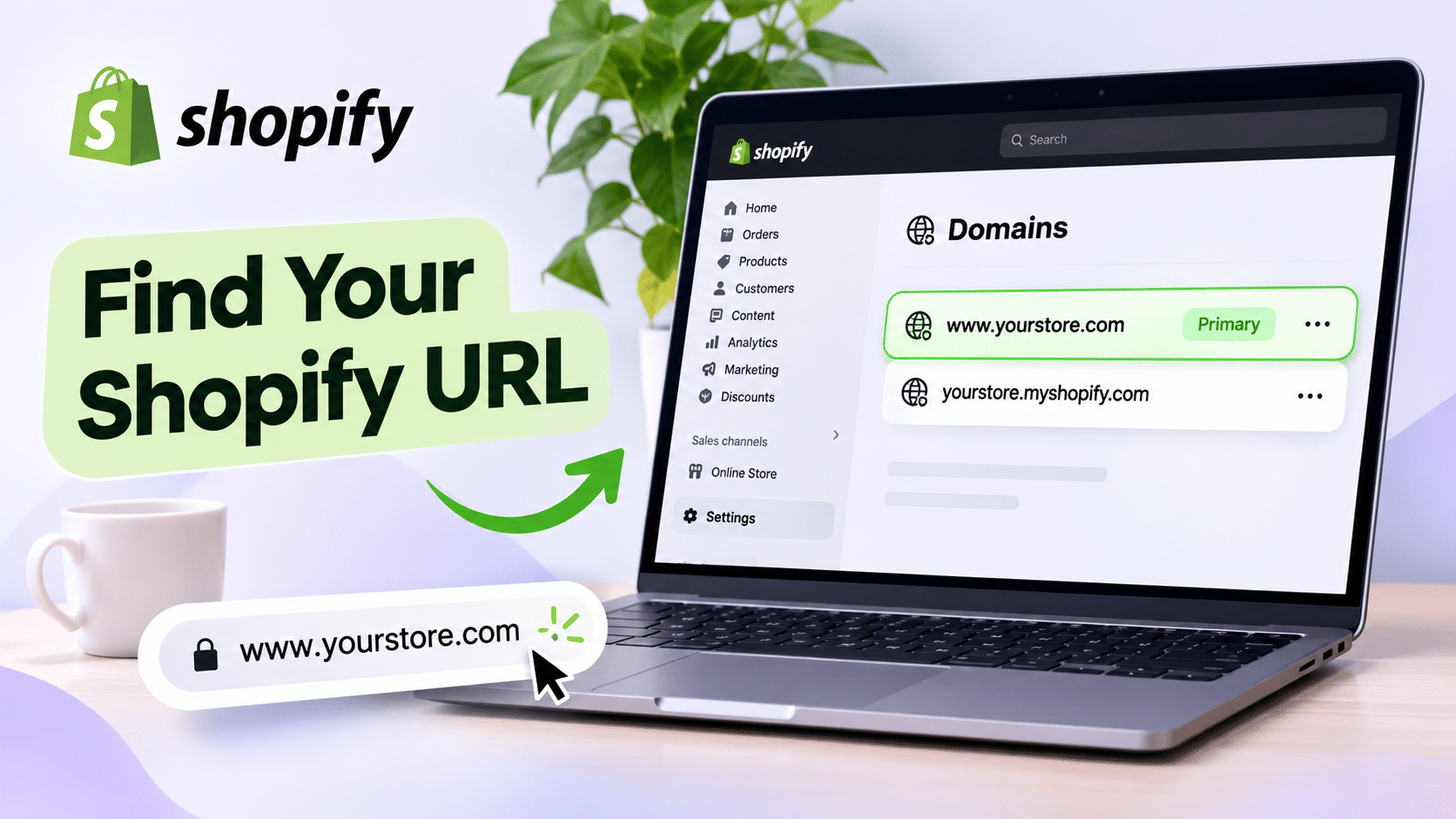
The easiest way to find your Shopify URL is through the Domains section in your Shopify admin. This section shows the domains connected to your store, including your default Shopify domain and any custom domains you’ve added.
Boost Your Conversion Instantly with Nudgify: Turn your website visitors into customers with real-time Social Proof and FOMO Nudges. Get Started Now →
Follow these steps to find your Shopify store URL:
- Log in to Shopify. Open the Shopify login page and sign in to your account.
- Open Settings. Once you’re in your Shopify admin dashboard, select Settings at the bottom of the sidebar.
- Select Domains. Find and open the Domains section to view the domains connected to your store.
- Identify your store URL. Look for your default Shopify domain, which usually ends in
.myshopify.com. If you’ve connected a custom domain, you’ll see that listed too. - Copy your preferred URL. Copy the public-facing domain you want customers to use when visiting your online store.
Your default Shopify domain remains associated with your store even if you use a custom domain as your primary website address.
How to Find Your Shopify URL on Mobile
You can also check your Shopify URL using the Shopify mobile app. This is useful if you need to find your store address while away from your computer.
- Open the Shopify app on your mobile device.
- Sign in to the account associated with your store.
- Open the Settings section.
- Look for Domains to view the domains connected to your store.
- Check your default Shopify domain and any connected custom domains.
If you cannot find the Domains section in your app, open Shopify in your mobile browser and access your admin dashboard there. The desktop version may be easier to navigate.
Increase Trust & Sales with Social Proof
Boost trust, engagement, and conversions with Social Proof — tailored for any industry and easy to integrate. Seamlessly manage client access with our team portal.


What Does a Shopify URL Look Like?
A Shopify URL is the web address associated with your online store. Depending on your domain setup, it may use Shopify’s default myshopify.com address or a custom domain that reflects your business name.
Here are the main types of Shopify URLs you should know:
| URL Type | Purpose | Example |
|---|---|---|
| Default Shopify URL | Identifies your Shopify store. | yourstore.myshopify.com |
| Public Storefront URL | Allows customers to visit your online store. | www.yourstore.com |
| Shopify Admin URL | Allows authorized users to access and manage the store. | admin.shopify.com/store/yourstore |
| Custom Domain | Provides your store with a branded website address. | www.yourbrand.com |
Although these URLs are related to your Shopify store, they serve different purposes. The most important distinction is between your public storefront URL, which customers can visit, and your admin URL, which you use to manage your store.
1. Default Shopify URL
Your default Shopify URL is the address Shopify assigns to your store when you create it. It usually follows this format:
yourstore.myshopify.com
For example, if your store name is Bright Home, your default Shopify domain might look like:
brighthome.myshopify.com
This domain is associated with your Shopify store and is used for administrative and technical purposes, including certain integrations. You can still use a custom domain as your primary customer-facing address.
2. Public Storefront URL
Your public storefront URL is the website address customers use to browse your products, explore collections, and make purchases.
If you’ve connected a custom domain, your storefront URL might look like:
www.yourstore.com
This is generally the link you should share with customers through social media, email campaigns, advertisements, and other marketing channels.
3. Shopify Admin URL
Your Shopify admin URL takes you to the dashboard where you manage your store. This is where you can add products, process orders, update settings, manage customers, and customize your website.
An admin URL may look like this:
admin.shopify.com/store/yourstore
Unlike your public storefront URL, your admin URL is intended for authorized store users. Customers should not use it to visit your online shop.
4. Custom Domain
A custom domain is a personalized website address that you connect to your Shopify store. Instead of using a default .myshopify.com address as your main storefront link, you can use a branded domain that is easier for customers to recognize and remember.
For example:
www.yourbrand.com
Using a custom domain can help establish your brand identity and create a more professional shopping experience.

How to Share Your Shopify Store URL
Once you’ve found your Shopify URL, you can share it with potential customers so they can visit your online store. Before sharing, make sure you’re copying your public storefront address rather than your private admin link.
Share Your Main Store URL
To share your main store URL:
- Open your Shopify admin dashboard.
- Go to Settings and select Domains.
- Identify your primary domain.
- Copy the domain address.
- Paste it into your social media profile, email, message, or marketing material.
If you’ve connected a custom domain and set it as your primary domain, use that address when directing customers to your store.
Share a Specific Product URL
You don’t always need to share your homepage. If you’re promoting a particular item, you can share its individual product URL instead.
- Open your Shopify admin dashboard.
- Go to Products.
- Select the product you want to share.
- Find the option to view the product on your online store.
- Open the product page and copy its URL from your browser’s address bar.
You can then share this direct link with customers who are interested in that specific product.
Share a Collection URL
If you want customers to browse a group of related products, share a collection link instead.
- Go to Products in your Shopify admin.
- Select Collections.
- Open the collection you want to promote.
- View the collection on your online store.
- Copy the URL from your browser’s address bar.
Collection links are useful for seasonal promotions, product categories, gift guides, and special offers.
What If You Cannot Find Your Shopify URL?
If you’re still asking, “where is my Shopify URL?”, don’t worry. There are several reasons why you might not immediately see the address you’re looking for.
Your Store Has a Custom Domain
If you’ve connected a custom domain, Shopify may display that domain as your primary storefront address. This does not mean your original .myshopify.com domain has disappeared.
Open Settings, select Domains, and review the list of connected domains. You should be able to identify your default Shopify domain and your custom domain there.
You Forgot Your Shopify Store Name
If you have multiple Shopify stores or cannot remember your store name, try signing in using the email address associated with your Shopify account.
You can also check previous Shopify emails, saved browser bookmarks, or your password manager for your store’s login information.
Your Shopify URL Is Not Working
If your store URL does not open, check the following:
- Check the spelling. Make sure the domain name is correct and does not contain extra characters or spaces.
- Check your domain connection. If you’re using a custom domain, confirm that it is properly connected to Shopify.
- Check your domain status. Make sure your domain has not expired and that its settings are up to date.
- Check your store status. Confirm that your Shopify subscription and store settings allow customers to access your online store.
- Try another browser. Open the URL in a different browser or private browsing window to rule out a browser-related issue.
If the problem continues, visit the Shopify Help Center for further assistance.
Can You Change Your Shopify URL?
Yes, you can change the domain customers use to visit your Shopify store by connecting a different custom domain and setting it as your primary domain.
However, your original .myshopify.com domain is a permanent identifier associated with your Shopify store. Shopify allows changes to the store’s myshopify.com domain only under its applicable rules and limitations. Check Shopify’s current domain guidance before making changes.
How to Change Your Primary Shopify Domain
If you already have another domain connected to your store, you can change which domain customers see when visiting your website.
- Log in to your Shopify admin dashboard.
- Open Settings.
- Select Domains.
- Choose the custom domain you want to use.
- Follow the available option to set it as your primary domain.
- Review the changes and confirm your selection.
Once your primary domain is updated, customers will use that domain to access your storefront. Make sure your domain connection and DNS settings are configured correctly before making the change.
For detailed instructions, refer to Shopify’s official domain management guide.
More Shopify Guides
Want to learn more about setting up and managing your Shopify store? Explore these related guides:
- How to Connect a Custom Domain to Shopify
- Shopify SEO Tips for Beginners
- How to Set Up Your Shopify Store
Key Takeaways
Finding your Shopify URL is simple once you know where to look. Here are the most important things to remember:
- You can find your Shopify URL by going to Settings and selecting Domains in your Shopify admin dashboard.
- Your default Shopify URL usually ends in
.myshopify.com. - Your custom domain is generally the best address to share with customers when it is set as your primary storefront domain.
- Your Shopify admin URL is for managing your store and should not be shared as your public website link.
- You can share individual product and collection URLs to direct customers to specific items or product categories.
- If your URL is not working, check your domain connection, spelling, and store settings.
Once you know the difference between your default Shopify domain, custom domain, and admin URL, finding and sharing the correct store link becomes much easier.
Frequently Asked Questions
1. Where is my Shopify URL located?
You can find your Shopify URL by logging in to your Shopify admin dashboard, opening Settings, and selecting Domains. Your default Shopify domain and any connected custom domains will be listed there.
2. What is my Shopify store URL?
Your Shopify store URL is the web address associated with your online shop. It may be your default .myshopify.com domain or a custom domain connected to your store.
3. Is my Shopify URL the same as my website URL?
Not necessarily. Your Shopify URL may refer to your default .myshopify.com domain, while your website URL may be a custom domain that customers use to visit your storefront.
4. How do I find my Shopify URL without logging in?
Check your browser bookmarks, previous Shopify emails, or saved store links. If you have already shared your store online, you may also find its public URL on your social media profiles or marketing materials.
5. Can customers see my myshopify.com URL?
Customers may see your default .myshopify.com domain if they access it directly. However, if you’ve connected a custom domain and set it as your primary domain, customers will generally be directed to your branded website address.
6. Can I change my Shopify store URL?
You can connect a new custom domain and set it as your primary storefront address. Your original .myshopify.com domain remains associated with your store, and changes to that domain are subject to Shopify’s current rules.
7. What is the difference between a Shopify URL and a Shopify admin URL?
Your Shopify URL is the address associated with your online store, while your Shopify admin URL takes you to the dashboard where you manage products, orders, customers, and settings. The admin URL is intended for authorized users.
8. How do I share my Shopify store link?
Open Settings, select Domains, and copy your primary storefront domain. You can paste this link into social media profiles, emails, messages, and advertisements so customers can visit your store.

Increase your sales and sign-ups by up
to 15% from $9/mo. only with our Social Proof & FOMO App
Add to Shopify
